
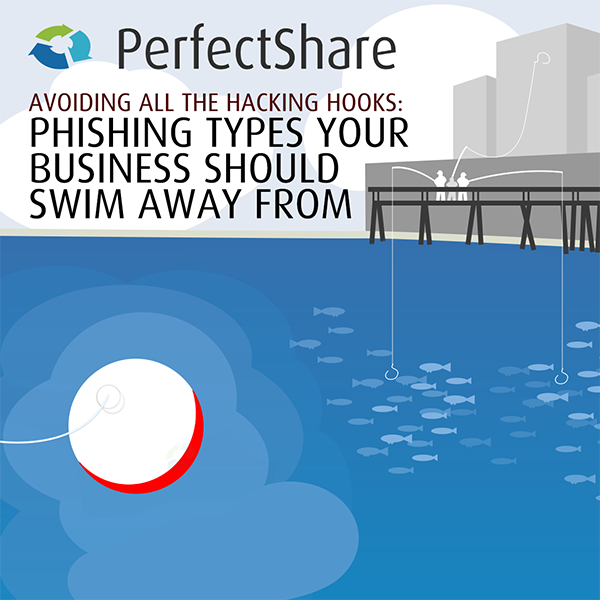
Your business can be eaten by the unseen fish in a big pond. Learn how phishing works against your business – and get your phishing infographic for free. Counteract scams and hacking attacks on your business like phishing, spear phishing, whaling, vishing, business email compromise (BEC) and more. Your business security is important – don’t drown in it! … Read More
Latest Posts

Simple email collaboration replacement for business – stop wasting time in 2018
Email collaboration in business needs replaced, and it needs replaced as fast as possible. Find out how much time and money I lost, and take advantage of the EXACT same email collaboration replacement solution I used. … Read More

Saving your business time the secure way: PerfectShare’s Story
How PerfectShare was born from too many trips, too many emails and too much insecure data shared between busy people. Your business can benefit in a similar way – find out how we started and how our similar needs might be met with PerfectShare. … Read More
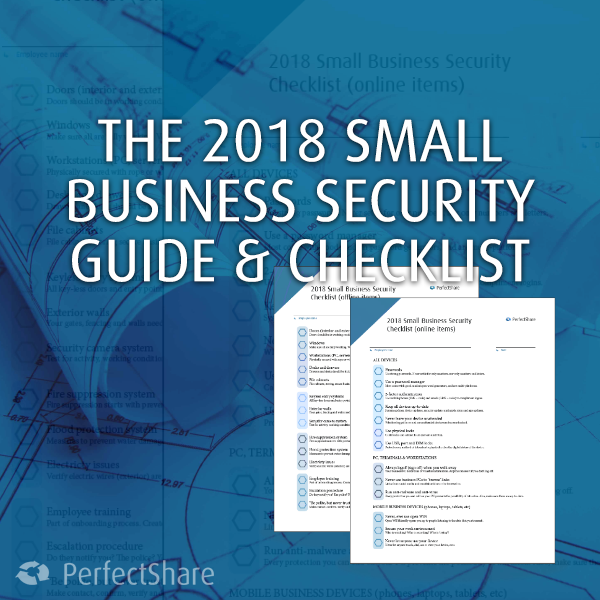
Crazy times made smoother: 2018 Small Business Security Guide
The growing concern of 2018 is cyber security. But is your small business secure? And, not only online, but offline as well? We cover a lot of basic business security information inside. You can also grab a free business security guide to audit your company today. … Read More
The $1,300,000 Security Problem: Sharing business files with email
The blue sky was his paradise. John Smith, local owner of ABC Business in Sometown USA, loved days like today. The clouds were few and far between; their count mirrored by the constant warming of the sun’s rays spilling onto … Read More
Doing Physical Business Security Right: Question Everything
Performing solid physical business security involves more than locking your front doors. We look at multiple ways to secure your company starting today. … Read More

File sharing do’s and don’ts for 2017
In today’s business environment, sharing data as part of efficient collaboration and productivity is mandatory. However, without clear data sharing policies and knowledge in place, the worst can and will happen. … Read More

Employee Onboarding Discussions That Boost Your Small Business Security
There are times where business security should be discussed – ALWAYS! Today, we look at employee onboarding and security discussions to have at that time. Are you talking about the right things with your new employees? Should you be sitting down with old employees concerning these business security issues? … Read More

3 Things to think about when sharing large files in business
Business need the ability to handle large files. Large file sharing is best accomplished but keeping these three items in mind: security, platform and moving from dated technologies. … Read More

Areas Of Business Security You Should Be Focusing On In 2017
Your business security is your number one daily issue. What should you be focusing on in 2017 for your business? … Read More